

Support information on mayonjl(jlmayon) starts with a simple question: what happened, and at which step? A route that will not load, a rejected login, and an installation warning are different issues. Choose the matching sequence below and change one thing at a time. This website cannot inspect an external account or perform an account recovery on your behalf.
On this page 10 sections
Identify the stage of the problem
Write down the last action that worked. Perhaps the homepage loaded but a route did not, the destination opened but the login failed, or a file downloaded but would not install. That distinction is more useful than describing every problem as an app failure. Keep the exact non-sensitive error text and the time it appeared; avoid guessing at the cause before checking basic facts.
If you see a certificate warning, an unexpected payment request, or a demand for credentials unrelated to the task, stop. Troubleshooting should not require you to ignore a warning you do not understand. Preserve enough information to ask a clear question, then verify the destination through a channel you already trust. Do not send passwords, one-time codes, or full identity documents with an initial report.
The homepage opens, but a route does not
Try the affected route once in a fresh tab and let the browser finish. Note whether the address changes before the error. Compare with an ordinary website to see whether the connection works generally. If all websites fail, investigate the local network first. If only one destination fails, record that distinction and avoid repeatedly changing account settings.
A second listed route may provide another entrance, but its presence is not a promise that it is live or faster. There is no measured uptime or automatic speed ranking displayed here. Use the destination’s final address when describing the issue. A route label is useful context, but it may not identify every intermediate address the browser visited.
The destination opens, but sign-in fails
Read the actual message. Incorrect credentials, a pending verification step, and a temporary restriction can require different responses. Review the Login page for preparation, then use the destination’s own account-recovery process when appropriate. This website does not have access to account records, so it cannot confirm a password, remove a restriction, or tell you whether a transaction was received.
Do not make repeated password guesses or create another account as a first response. Check whether you are using the account identifier associated with that particular service. If you request a reset, make sure the recovery contact belongs to you. Keep the reset process in one trusted browser session and do not forward its links or codes to someone offering unsolicited assistance.
A mobile page behaves differently
Identify whether the link opened in a messaging app’s embedded window or your regular browser. An embedded window may handle downloads and sessions differently. Use an open-in-browser option if available, then inspect the destination address again. If the behaviour changes, include that observation in your report rather than assuming that the external account has changed.
For a layout problem, record the device type, browser, orientation, and approximate text size. A cropped screenshot can show an overlap or an unreadable button without exposing personal details. Do not reduce text below a comfortable size just to make a control fit. If an action is obscured, pause until you can use it clearly and deliberately.
A file cannot be downloaded or installed
Separate transfer failures from installation failures. A stalled transfer may involve the connection or available storage. An installation warning may involve compatibility, permissions, or the file itself. The Download page explains source checks. No verified application package has been supplied here, so this website cannot certify a file or provide an alternative mirror as a confirmed replacement.
Record the original source and the exact warning. Avoid downloading several unrelated files with similar names. Do not disable security features merely to make an unknown package install. If a publisher offers a documented troubleshooting process, follow that process through its verified channel. Browser access may remain an option, but its availability depends on the external service.
Connection tools are a separate choice
A DNS setting or VPN application changes part of the connection path. It does not reset an account, establish eligibility, or confirm that a destination is trustworthy. If you choose to use a connection tool, understand which mode is active and keep track of what changed. Running several tools at once can make it harder to identify the effect of each one.
The illustrated setup below describes Cloudflare’s consumer application at a high level. The pictures are schematic rather than screenshots of your device. App versions and permission prompts can change. Use the provider’s current instructions for details, and do not assume that activating a tool guarantees access to a particular website or makes an otherwise restricted activity permissible.
Connection setup
iPhone / iPad
STEP 1
Open the App Store
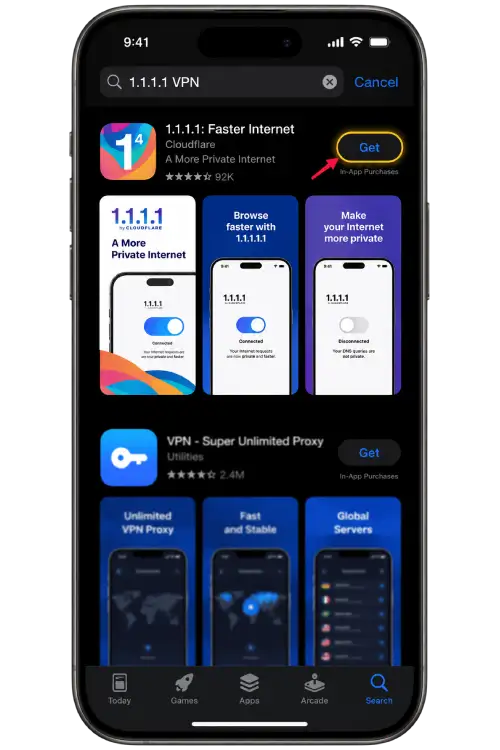
Open the App Store on your iPhone or iPad. Use the provider link below to locate its application.

STEP 2
Find and install the app
Look for 1.1.1.1: Faster Internet by Cloudflare. Confirm the developer, install it and review the introductory information.
STEP 3
Enable the connection
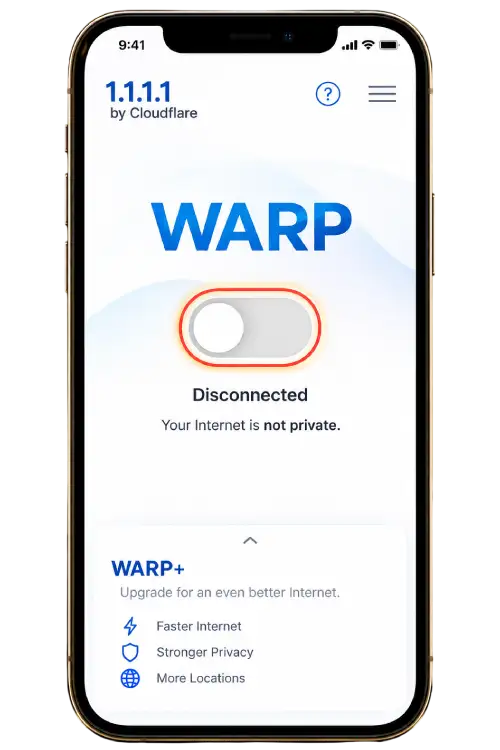
Open the application and review its terms. Turn WARP on, then read and approve the iOS VPN configuration request if you agree.
STEP 4
Check the connection
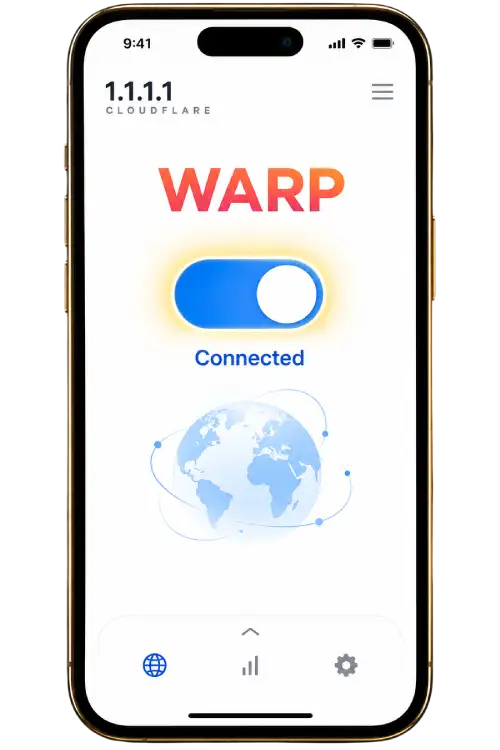
Wait for the app to report Connected, then return to your browser and reload the page.
Android
STEP 1
Open Google Play
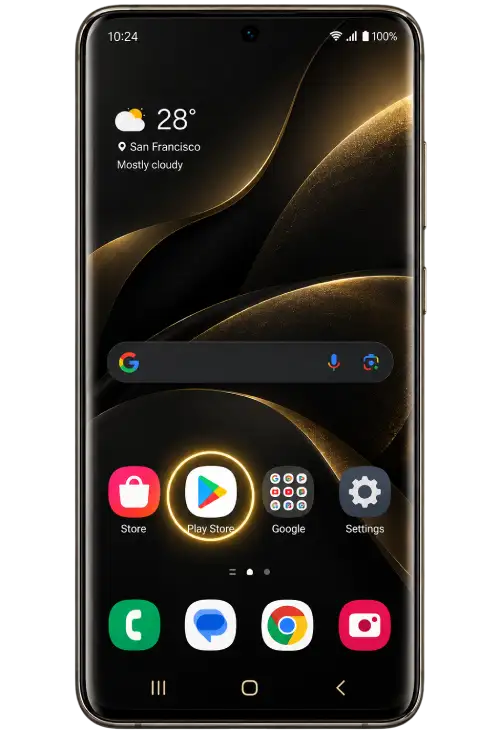
Open Google Play on your Android phone, or follow the Google Play link from the provider website.
STEP 2
Find and install the app
Look for 1.1.1.1: Faster Internet by Cloudflare. Confirm the developer and install the application.
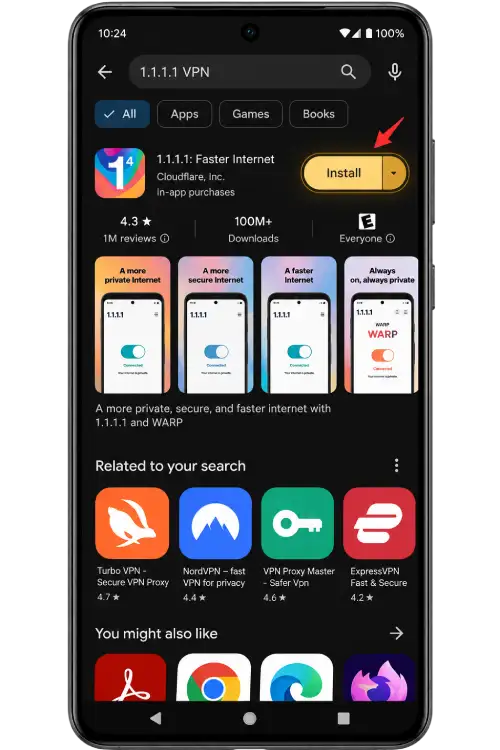
STEP 3
Enable the connection
Open the application, review its terms, and turn WARP on. Read the Android VPN connection request before approving.
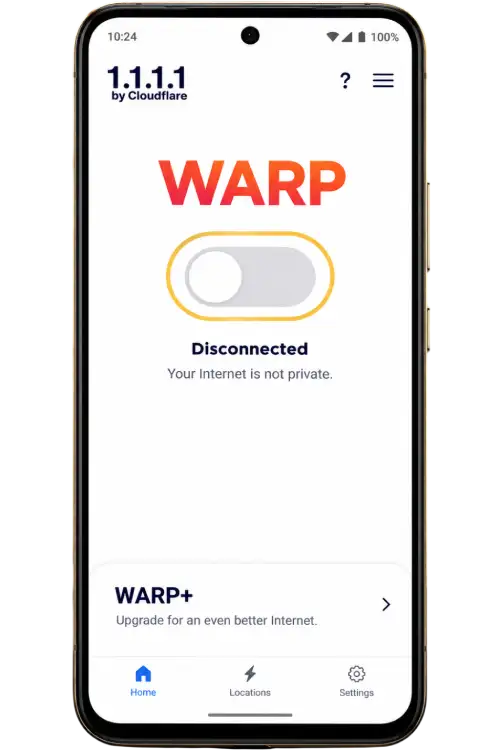
STEP 4
Check the connection
Wait for Connected, then return to your browser and reload the page. Disconnect if you no longer need the connection.
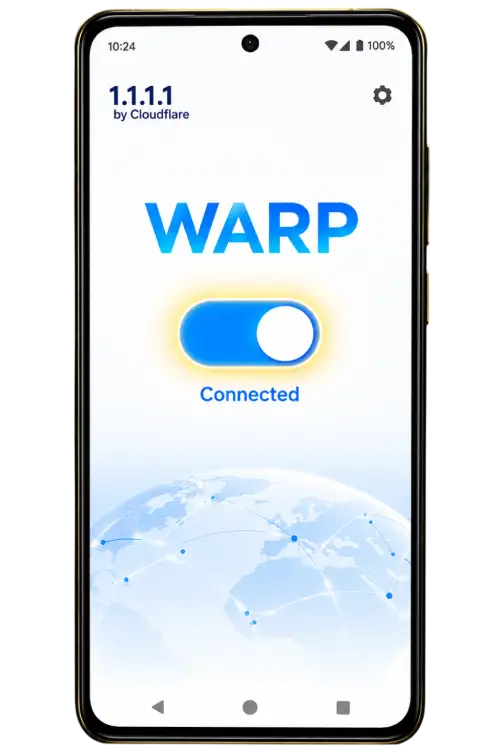
Images are illustrated examples; screens and permission wording may vary by app and system version. DNS-only mode affects DNS queries; WARP also routes device traffic through its tunnel. Neither mode guarantees that a website will open. Cloudflare is a third-party provider; optional paid features may be offered.
Setup details: Cloudflare iOS instructions · Android instructions.
Prepare the first message
A useful report includes the affected page or hostname, the approximate time, device and browser, the action you attempted, and the result. Add the exact error text if it contains no private information. Say whether the issue happens every time or only on a particular connection. List a small number of checks you completed and what each one changed.
Keep the message focused on one issue. A short sequence such as homepage opened, route selected, destination timed out is easier to investigate than a long collection of unrelated screenshots. Do not include a full browser history or account conversation unless the verified recipient explains why a specific item is needed. Share the least information necessary for the next diagnostic step.
Understand the contact channels shown here
The floating contact buttons currently use reference links. Their final account ownership has not been verified as belonging to this website. Treat them as external channels and establish the recipient’s identity before sharing information. The Contact page explains this distinction. No response time, staffing schedule, or resolution deadline is promised on the basis of an icon or a visible link.
If a person asks you to pay an unexpected fee, reveal a code, or install remote-access software, stop and verify the request independently. Keep a record of the non-sensitive conversation details. An account-specific issue belongs with the service that holds the account; a page-layout issue belongs with the website presenting that page. Choosing the correct recipient reduces unnecessary disclosure.
Know when to pause
For mayonjl(jlmayon), a successful support process means identifying a safe, relevant next step rather than continuing to retry indefinitely. If the source is unclear or the problem requires information you do not have, stop and return later. Preserve the error details, restore settings you changed only for testing, and avoid making additional commitments while a question remains unresolved.